How it works
Your bid period in. Your contract's math out.
CheckSix is built around one loop: enter each day the way you actually flew it, watch the ATI contract price it rule by rule, then compare the prediction against the check that lands. Here's the whole thing in five steps.
Screens below show demo data for a fictional pilot — Alex Morgan, Period 9, 2026.
Set up once
Two minutes, one time. Your profile tells CheckSix who you are on the pay table, and your calendar anchor tells it where the 13-period payroll year sits. After that, every bid period you create already knows its dates, its rates, and its check schedule.
-
PROFILE
Name, seat, and hire date
Seat and hire date are what drive your hourly rate — including years-of-service bumps. If your YOS anniversary lands mid-period, CheckSix applies the old rate before it and the new rate after it, day by day.
-
ANCHOR
Anchor your bid calendar
Point CheckSix at any one bid period's start date. From that single anchor it lays out all thirteen 28-day periods and both pay dates in each one.
Enter your month
The dashboard is your bid period as a calendar — all 28 days. Tap any day and mark it Work, Vacation, Sick, or Off; work days then take the actual events you flew. Each card shows what that day earned, and the bar along the bottom keeps a running total of the whole period.
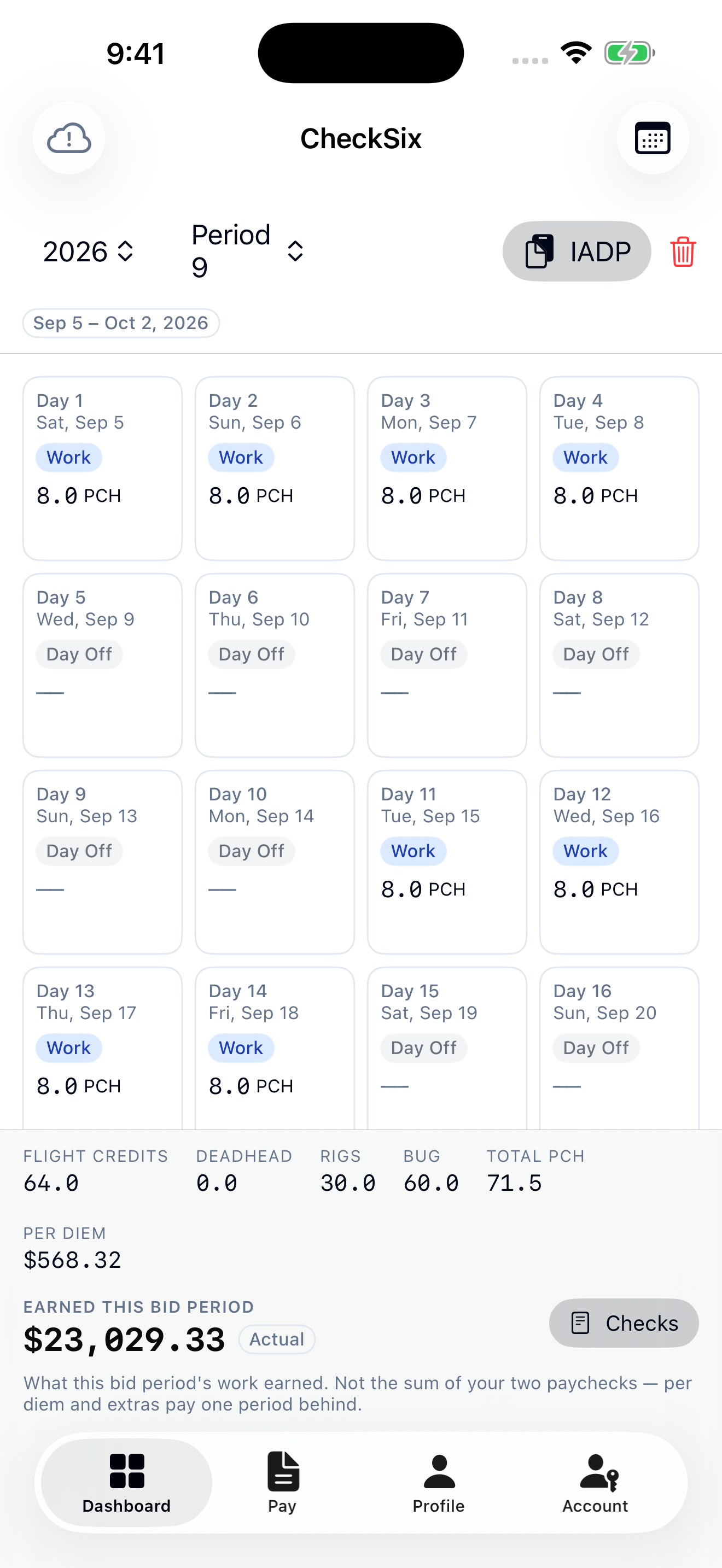
- Per-day credit totals — every work day shows its PCH at a glance
- Earnings bar — live period total and which pay method is winning
- Sample data — fictional pilot records shown throughout the tour
Log a day like you fly it
Open a day and add events the way they happened: flights with Zulu times (the app handles the +1 day rollover), deadheads as air or ground/limo — ground pays 50% credit — and positioning legs at zero pay so your entry matches your IADP paperwork. Reserve days take R1, R2, or R3 with duty times, so the long-duty check has what it needs. Add a note to any leg, tick the supplement boxes — volunteer, launch override, and the rest — and everything auto-sorts into time order.
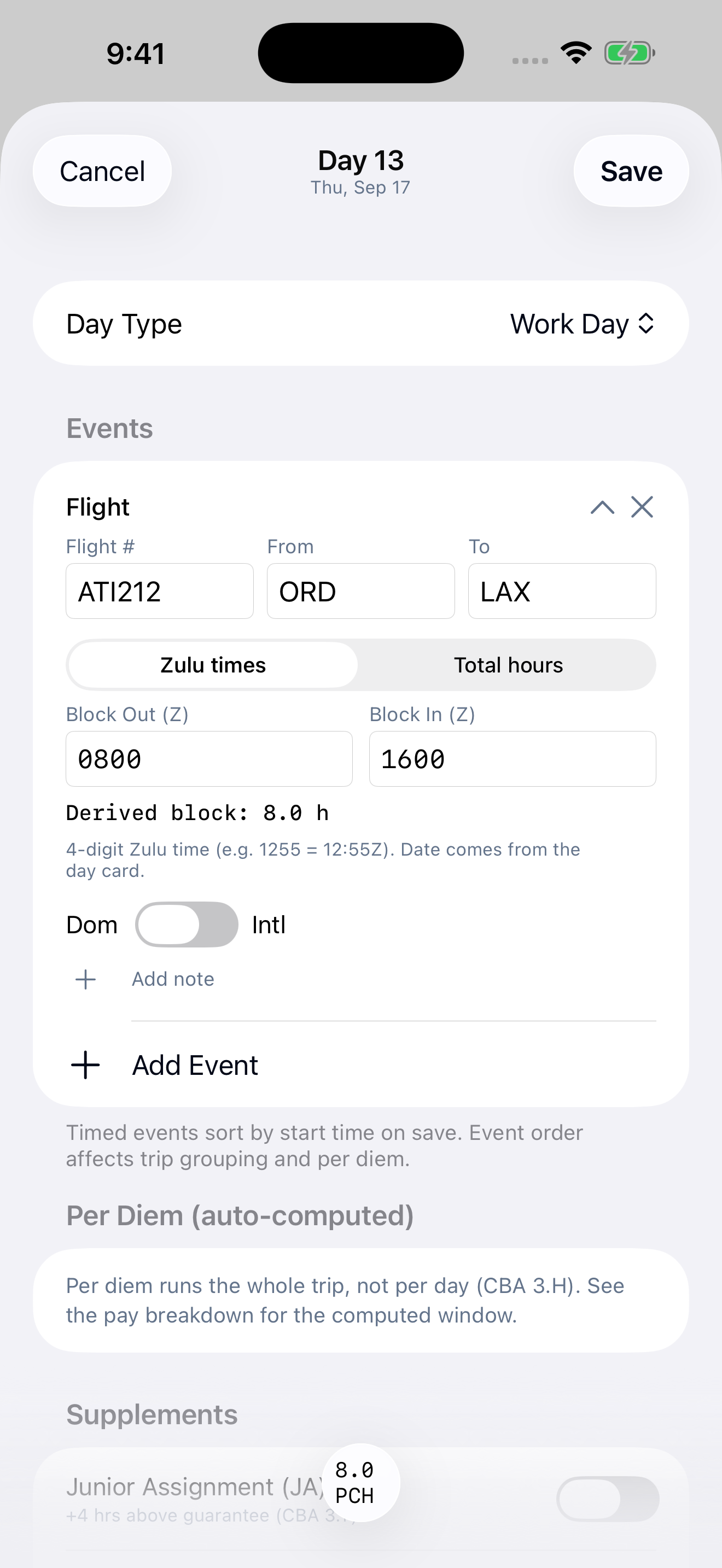
- Zulu times — enter block out and block in, or enter total hours
- 8.0 hours — the displayed block duration comes from this sample flight
- Day total — pay credit recomputes as you edit the day's events
Watch the contract do the math
The Pay Breakdown is the whole calculation with its work shown. Every line cites the CBA section it comes from — vacation at §7.E, supplements at §3.T, CBT at §11.H — so you can pull the contract and check it yourself. At the top, the §3.E comparison lays out actual flying, the BUG guarantee, both rigs, and your awarded line value (FLV), and marks which one payroll should be paying you.
The §3.E comparison
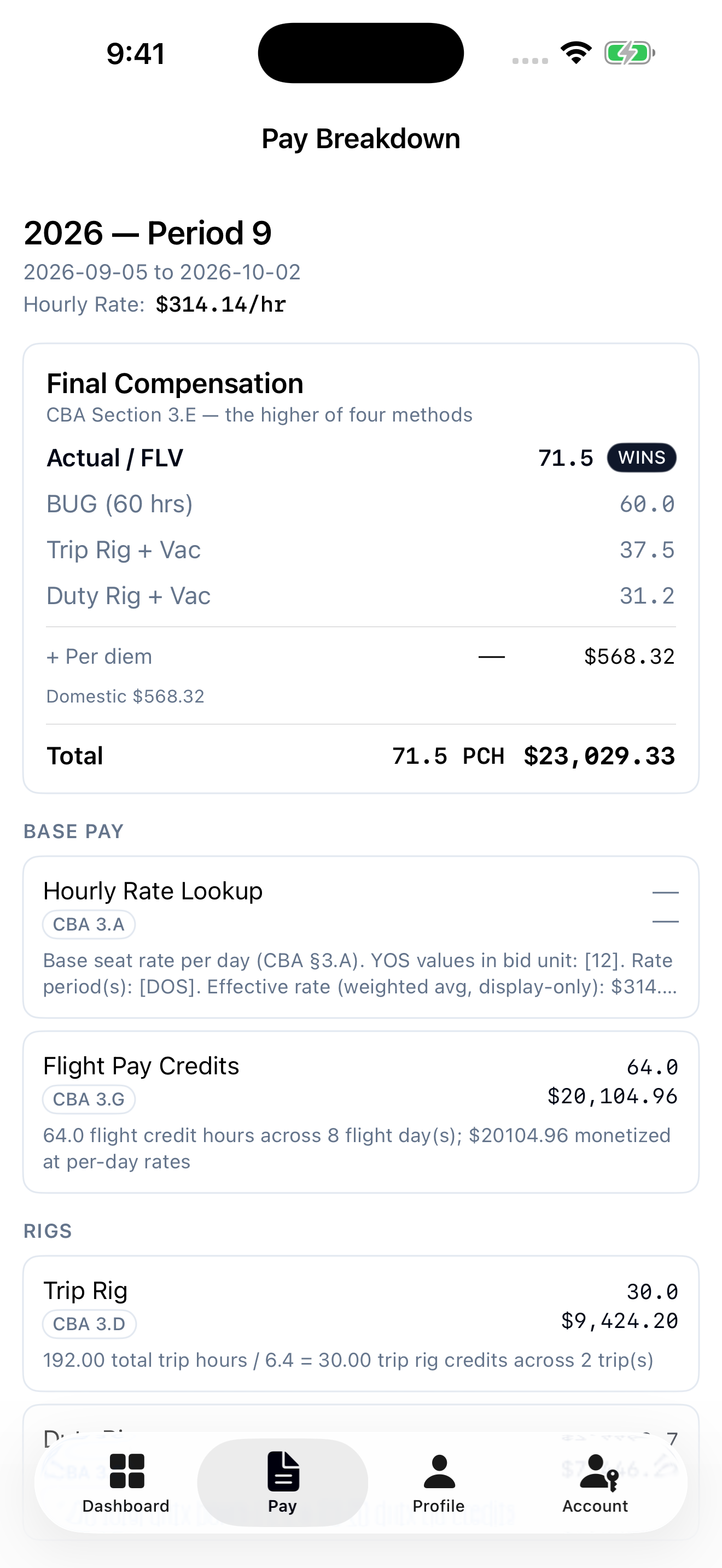
- WINS — the §3.E max() picks the best of four methods for you
- CBA references — each modeled rule shows its contract section
Your rate inputs
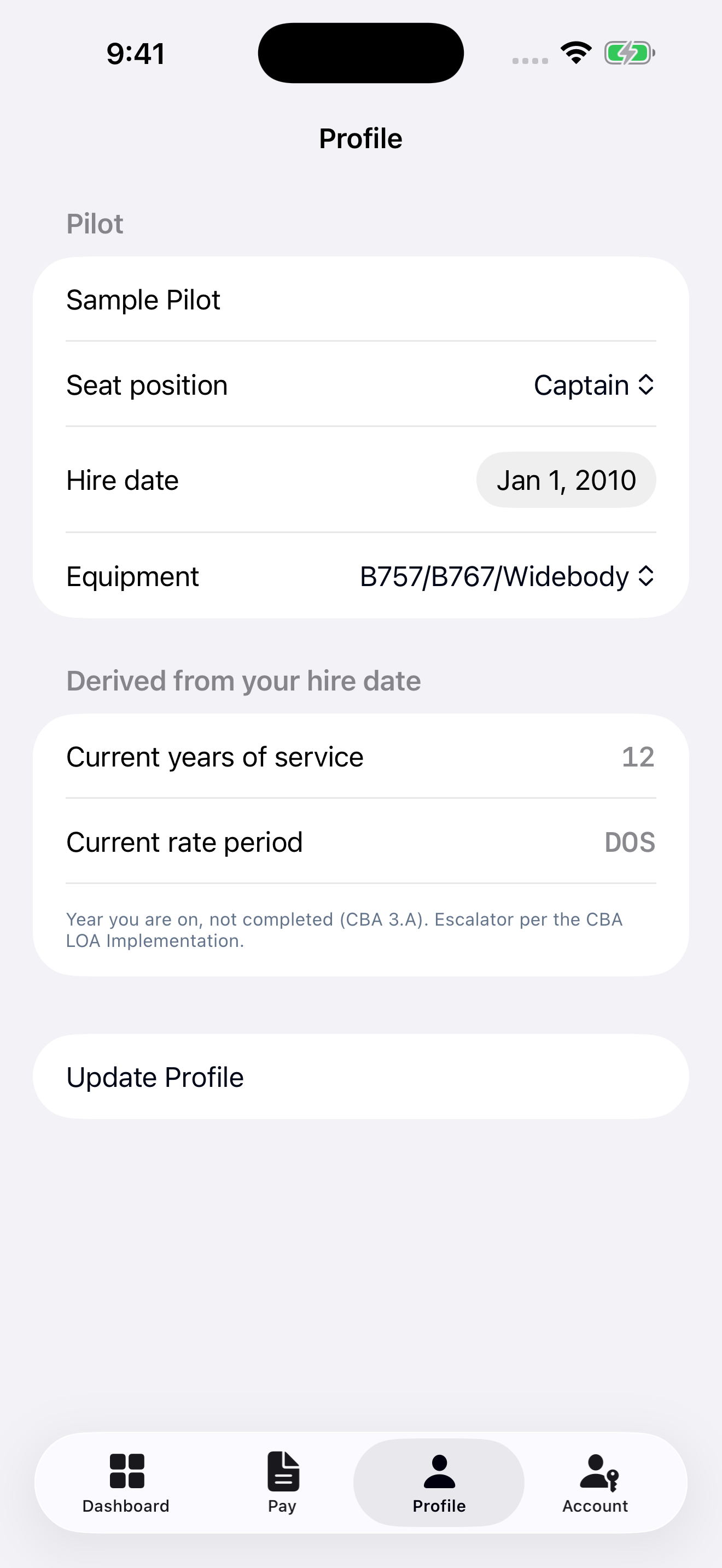
- Seat and hire date — your profile provides the rate inputs
- Years of service — derived from your hire date
- Rate period — the app shows the applicable contract period
Check your checks
You get two checks per bid period, and they don't line up neatly with what you flew — per diem and extras trail onto later checks. CheckSix maps your earnings onto the real pay calendar and predicts each deposit. When the money lands, type in the gross and compare line by line. If they match, sleep easy. If they don't, you know exactly which line to take to payroll.
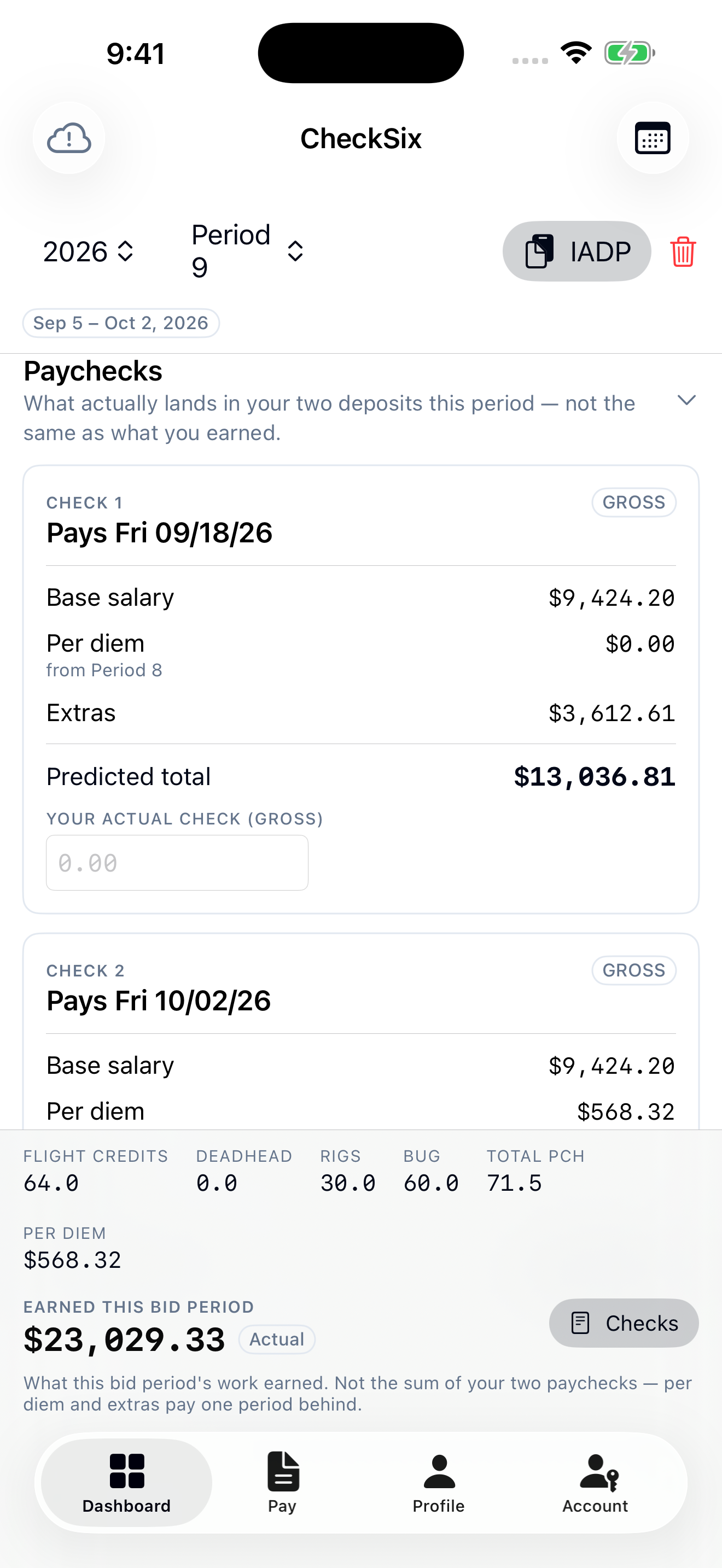
- Real pay dates — two checks per period, on the actual calendar
- Predicted vs actual — enter your gross deposit right next to the prediction
- Trailing items — per diem and extras tracked across period boundaries
Step 06 — your leg
Try it with your own bid period
The best test is your own flying: beta pilots enter one bid period and compare it against their next paycheck. Everything stays on your device.